# Octopi Trader Installation

Installation Guide (Sent via welcome email)

# Initial Installation

# First Time Install

**Once signed up for one of our subscription tiers**, you will receive an email with the following instruction set:

Subject:<span style="font-family: 'Lato 2', sans-serif, system-ui, -apple-system, 'Segoe UI', Roboto, Ubuntu, Cantarell, 'Noto Sans', sans-serif; font-size: 16px; font-style: normal; font-variant-ligatures: normal; font-variant-caps: normal; font-weight: bold; letter-spacing: normal; text-align: start; text-indent: 0px; text-transform: none; word-spacing: 0px; -webkit-text-stroke-width: 0px; white-space: pre-wrap; text-decoration-thickness: initial; text-decoration-style: initial; text-decoration-color: initial; display: inline !important; float: none;">OctoPi Trader Account created</span>

Thank you for your patronage,

Sierra Chart user **“SierraChart\_UserName”** will receive an OctopiTrader Custom Study in the next few minutes.  
Usage license will be valid through **Saturday, December 6, 2025.**

Use the following link to download the OctoPi Trader installer: [OctoPi Trader Installer](https://download2.octopitrader.com/)

**Before installing OctoPi Trader, please make sure you are running Sierra Chart version 2800 or higher**

Once installed, add **Octopi Trading System** to the main trading chart via **Studies → Add Custom Study**

Usage is assisted by a custom toolbar seen in instructional videos linked below. To create a toolbar within Sierra Chart:

- **Right-Click** on an existing toolbar OR go to **Window → Control Bars → Control bar #**.
- Add the following buttons to the control bar: **Custom Study Button 1, 2, and 3, Auto Trade System Bar Based Backtest, Replay Chart.**

Tutorials on our Youtube channel: [OctoPi Trader](https://www.youtube.com/watch?v=sWgzRhb1RiQ)

For any questions, please reach out to [support@octopitechnologies.com](mailto:support@octopitechnologies.com "Support Email")

Thank you,  
Octopi Team

# Quickstart Guide

<span>Best Practices, First Steps, First Config step-by-step, other info </span>

# Quickstart Guide and Best Practices

<span style="font-size: 11pt; font-family: Arial, sans-serif; background-color: transparent; font-weight: bold; font-style: normal; font-variant: normal; text-decoration: none; vertical-align: baseline; white-space: pre-wrap;">Octopi Trader Installation, Basic Configuration &amp; Troubleshooting</span>

**This document helps users walk through installation best practices and a very basic first configuration to get familiar with Octopi &lt;-&gt; Sierra interface and verify operation of all components.**

[<span style="font-size: 11pt; font-family: Arial, sans-serif; background-color: transparent; font-weight: 400; font-style: normal; font-variant: normal; text-decoration: underline; text-decoration-skip-ink: none; vertical-align: baseline; white-space: pre-wrap;">Risk Disclosure</span>](https://www.octopitrader.com/utility/terms)

<span style="font-size: 11pt; font-family: Arial, sans-serif; background-color: transparent; font-weight: 400; font-style: normal; font-variant: normal; text-decoration: none; vertical-align: baseline; white-space: pre-wrap;">Tutorials on our Youtube channel: </span>[<span style="font-size: 11pt; font-family: Arial, sans-serif; background-color: transparent; font-weight: 400; font-style: normal; font-variant: normal; text-decoration: underline; text-decoration-skip-ink: none; vertical-align: baseline; white-space: pre-wrap;">Octopi Trader Trader</span>](https://www.youtube.com/@octopitrader1640)

<span style="font-size: 11pt; font-family: Arial, sans-serif; background-color: transparent; font-weight: 400; font-style: normal; font-variant: normal; text-decoration: none; vertical-align: baseline; white-space: pre-wrap;">For any questions, please first see our </span>[<span style="font-size: 11pt; font-family: Arial, sans-serif; background-color: transparent; font-weight: 400; font-style: normal; font-variant: normal; text-decoration: underline; text-decoration-skip-ink: none; vertical-align: baseline; white-space: pre-wrap;">Discord Support Channel</span>](https://discord.gg/Fv3dUywHUZ)

<span style="font-size: 11pt; font-family: Arial, sans-serif; background-color: transparent; font-weight: bold; font-style: normal; font-variant: normal; text-decoration: none; vertical-align: baseline; white-space: pre-wrap;">Best practice is to </span>

- <span style="font-size: 11pt; font-family: Arial, sans-serif; background-color: transparent; font-weight: 400; font-style: normal; font-variant: normal; text-decoration: none; vertical-align: baseline; white-space: pre-wrap;">Create a copy of your Sierra Chart directory OR Installing a new copy of Sierra Chart for Octopi Trader Trader to be installed into (More info below)</span>
- <span style="font-size: 11pt; font-family: Arial, sans-serif; background-color: transparent; font-weight: 400; font-style: normal; font-variant: normal; text-decoration: none; vertical-align: baseline; white-space: pre-wrap;">Disable/Pause any Antivirus applications during the Octopi Trader Trader installation. Once installed, white-list the entire Sierra Chart directory to avoid any of the working files from being removed</span>
- <span style="font-size: 11pt; font-family: Arial, sans-serif; background-color: transparent; font-weight: 400; font-style: normal; font-variant: normal; text-decoration: none; vertical-align: baseline; white-space: pre-wrap;">Configure your new Sierra Chart application with a very simple single-instance</span>
- <span style="font-size: 11pt; font-family: Arial, sans-serif; background-color: transparent; font-weight: 400; font-style: normal; font-variant: normal; text-decoration: none; vertical-align: baseline; white-space: pre-wrap;">Configure Octopi Trader Trader with a simple 2 SMA system</span>
- <span style="font-size: 11pt; font-family: Arial, sans-serif; background-color: transparent; font-weight: 400; font-style: normal; font-variant: normal; text-decoration: none; vertical-align: baseline; white-space: pre-wrap;">Test and validate that backtesting works and executions are triggered as expected</span>
- <span style="font-size: 11pt; font-family: Arial, sans-serif; background-color: transparent; font-weight: 400; font-style: normal; font-variant: normal; text-decoration: none; vertical-align: baseline; white-space: pre-wrap;">Please watch all the videos on the </span>[<span style="font-size: 11pt; font-family: Arial, sans-serif; background-color: transparent; font-weight: 400; font-style: normal; font-variant: normal; text-decoration: underline; text-decoration-skip-ink: none; vertical-align: baseline; white-space: pre-wrap;">YouTube channel</span>](https://www.youtube.com/@octopitrader1640)<span style="font-size: 11pt; font-family: Arial, sans-serif; background-color: transparent; font-weight: 400; font-style: normal; font-variant: normal; text-decoration: none; vertical-align: baseline; white-space: pre-wrap;"> before installing</span>

<span style="font-size: 11pt; font-family: Arial, sans-serif; background-color: transparent; font-weight: bold; font-style: normal; font-variant: normal; text-decoration: none; vertical-align: baseline; white-space: pre-wrap;">First steps:</span>

1. <span style="font-size: 11pt; font-family: Arial, sans-serif; background-color: transparent; font-weight: 400; font-style: normal; font-variant: normal; text-decoration: none; vertical-align: baseline; white-space: pre-wrap;">Go to Octopi Trader Trader </span>[<span style="font-size: 11pt; font-family: Arial, sans-serif; background-color: transparent; font-weight: 400; font-style: normal; font-variant: normal; text-decoration: underline; text-decoration-skip-ink: none; vertical-align: baseline; white-space: pre-wrap;">website</span>](https://www.octopitrader.com/#Subscribe)<span style="font-size: 11pt; font-family: Arial, sans-serif; background-color: transparent; font-weight: 400; font-style: normal; font-variant: normal; text-decoration: none; vertical-align: baseline; white-space: pre-wrap;">, subscribe with your Sierra Chart username, and </span>[<span style="font-size: 11pt; font-family: Arial, sans-serif; background-color: transparent; font-weight: 400; font-style: normal; font-variant: normal; text-decoration: underline; text-decoration-skip-ink: none; vertical-align: baseline; white-space: pre-wrap;">download </span>](https://download2.octopitrader.com/)<span style="font-size: 11pt; font-family: Arial, sans-serif; background-color: transparent; font-weight: 400; font-style: normal; font-variant: normal; text-decoration: none; vertical-align: baseline; white-space: pre-wrap;">the installer</span>

1. 1. <span style="font-size: 11pt; font-family: Arial, sans-serif; background-color: transparent; font-weight: 400; font-style: normal; font-variant: normal; text-decoration: none; vertical-align: baseline; white-space: pre-wrap;">Look for the welcome email, it might be in your spam folder</span>
    2. <span style="font-size: 11pt; font-family: Arial, sans-serif; background-color: transparent; font-weight: 400; font-style: normal; font-variant: normal; text-decoration: none; vertical-align: baseline; white-space: pre-wrap;">Once downloaded, Right-click the Octopi Trader installer, select </span><span style="font-size: 11pt; font-family: Arial, sans-serif; background-color: transparent; font-weight: bold; font-style: normal; font-variant: normal; text-decoration: none; vertical-align: baseline; white-space: pre-wrap;">Run as Administrator</span>
    3. <span style="font-size: 11pt; font-family: Arial, sans-serif; background-color: transparent; font-weight: 400; font-style: normal; font-variant: normal; text-decoration: none; vertical-align: baseline; white-space: pre-wrap;">Be sure to point to the copied/new/test Sierra Chart directory</span>
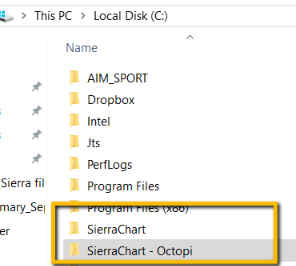
2. <span style="font-size: 11pt; font-family: Arial, sans-serif; background-color: transparent; font-weight: 400; font-style: normal; font-variant: normal; text-decoration: none; vertical-align: baseline; white-space: pre-wrap;">Now for Sierra: Look for your Sierra Chart directory. Copy the main directory so you are testing with a backup, rename the copy to Sierra Chart-Octopi Trader:</span>
    - **<span style="border: none; display: inline-block; overflow: hidden; width: 296px; height: 249px;">![](http://docs.octopitrader.com/uploads/images/gallery/2025-11/embedded-image-vfvqbhj0.png)</span>**
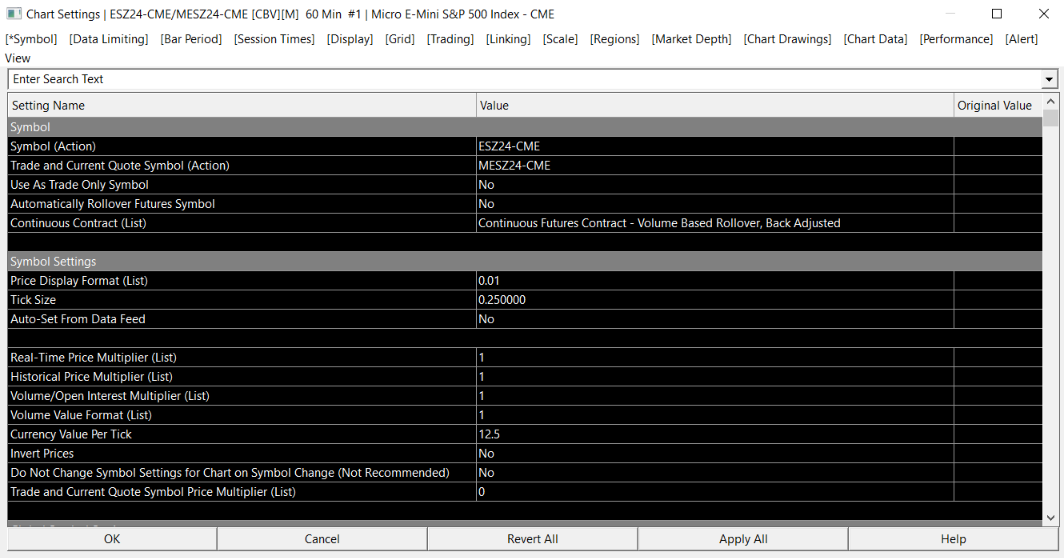
3. <span style="font-size: 11pt; font-family: Arial, sans-serif; background-color: transparent; font-weight: 400; font-style: normal; font-variant: normal; text-decoration: none; vertical-align: baseline; white-space: pre-wrap;">Add the current ES contract</span>
    1. <span style="font-size: 11pt; font-family: Arial, sans-serif; background-color: transparent; font-weight: 400; font-style: normal; font-variant: normal; text-decoration: none; vertical-align: baseline; white-space: pre-wrap;">Chart, Chart Settings, Symbol</span>**<span style="border: none; display: inline-block; overflow: hidden; width: 652px; height: 342px;">![](http://docs.octopitrader.com/uploads/images/gallery/2025-11/embedded-image-6laufise.png)</span>**
4. <span style="font-size: 11pt; font-family: Arial, sans-serif; background-color: transparent; font-weight: 400; font-style: normal; font-variant: normal; text-decoration: none; vertical-align: baseline; white-space: pre-wrap;">Make sure you have Chart#1 only. Octopi Trader MUST operate on Chart #1</span>
    1. <span style="font-size: 11pt; font-family: Arial, sans-serif; background-color: transparent; font-weight: 400; font-style: normal; font-variant: normal; text-decoration: none; vertical-align: baseline; white-space: pre-wrap;">Set Bar period to 60 minutes</span>
    2. <span style="font-size: 11pt; font-family: Arial, sans-serif; background-color: transparent; font-weight: 400; font-style: normal; font-variant: normal; text-decoration: none; vertical-align: baseline; white-space: pre-wrap;">Add four studies to the 60 minute chart</span>
        1. <span style="font-size: 11pt; font-family: Arial, sans-serif; background-color: transparent; font-weight: 400; font-style: normal; font-variant: normal; text-decoration: none; vertical-align: baseline; white-space: pre-wrap;">5 SMA </span>
        2. <span style="font-size: 11pt; font-family: Arial, sans-serif; background-color: transparent; font-weight: 400; font-style: normal; font-variant: normal; text-decoration: none; vertical-align: baseline; white-space: pre-wrap;">20 SMA</span>
        3. <span style="font-size: 11pt; font-family: Arial, sans-serif; background-color: transparent; font-weight: 400; font-style: normal; font-variant: normal; text-decoration: none; vertical-align: baseline; white-space: pre-wrap;">ATR, make it hidden</span>
        4. <span style="font-size: 11pt; font-family: Arial, sans-serif; background-color: transparent; font-weight: 400; font-style: normal; font-variant: normal; text-decoration: none; vertical-align: baseline; white-space: pre-wrap;">Octopi Trader</span>
            1. <span style="font-size: 11pt; font-family: Arial, sans-serif; background-color: transparent; font-weight: 400; font-style: normal; font-variant: normal; text-decoration: none; vertical-align: baseline; white-space: pre-wrap;">Add Custom Study, Select Octopi Trader Trading System</span><span style="border: none; display: inline-block; overflow: hidden; width: 458px; height: 243px;">![](http://docs.octopitrader.com/uploads/images/gallery/2025-11/embedded-image-otqdg6il.png)</span>
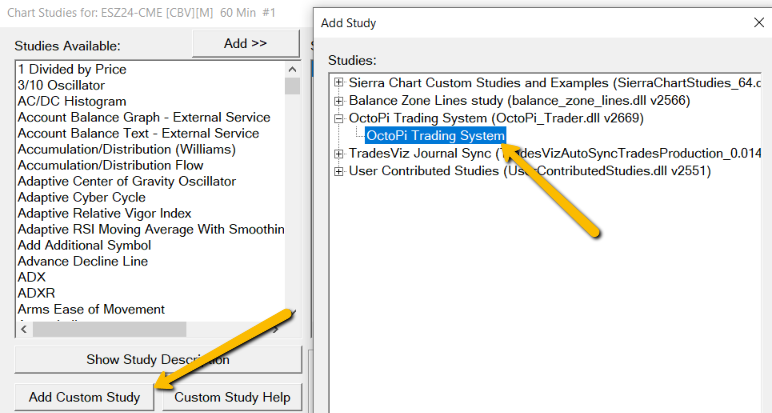
5. <span style="font-size: 11pt; font-family: Arial, sans-serif; background-color: transparent; font-weight: 400; font-style: normal; font-variant: normal; text-decoration: none; vertical-align: baseline; white-space: pre-wrap;">Configure the custom Octopi Trader toolbar</span>
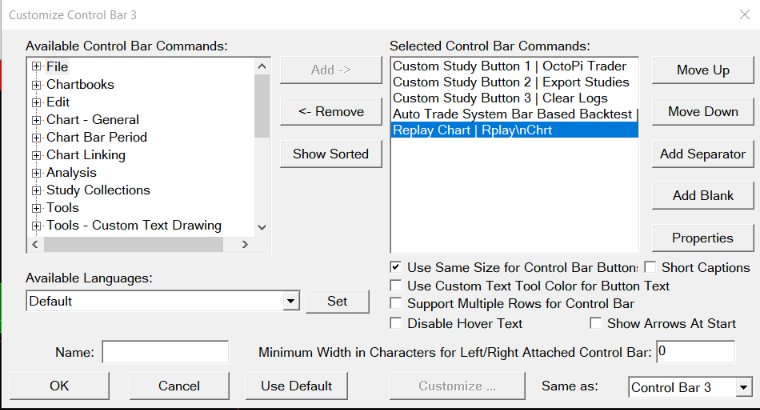
    1. <span style="font-size: 11pt; font-family: Arial, sans-serif; background-color: transparent; font-weight: 400; font-style: normal; font-variant: normal; text-decoration: none; vertical-align: baseline; white-space: pre-wrap;">Go to Window → Control Bars → Control bar #. </span>
    2. <span style="font-size: 11pt; font-family: Arial, sans-serif; background-color: transparent; font-weight: 400; font-style: normal; font-variant: normal; text-decoration: none; vertical-align: baseline; white-space: pre-wrap;">Add the following buttons to the control bar: Custom Study Button 1, 2, and 3, Auto Trade System Bar Based Backtest, Replay Chart</span>
    3. <span style="font-size: 11pt; font-family: Arial, sans-serif; background-color: transparent; font-weight: 400; font-style: normal; font-variant: normal; text-decoration: none; vertical-align: baseline; white-space: pre-wrap;">Global Settings, Customize Control Bar</span><span style="border: none; display: inline-block; overflow: hidden; width: 624px; height: 336px;">![](http://docs.octopitrader.com/uploads/images/gallery/2025-11/embedded-image-enbchv3h.png)</span>
    4. <span style="font-size: 11pt; font-family: Arial, sans-serif; background-color: transparent; font-weight: 400; font-style: normal; font-variant: normal; text-decoration: none; vertical-align: baseline; white-space: pre-wrap;">Your Custom Control bar should look like this:</span>
        - <span style="border: none; display: inline-block; overflow: hidden; width: 377px; height: 61px;">![](http://docs.octopitrader.com/uploads/images/gallery/2025-11/embedded-image-kd6gghqy.png)</span>
6. <span style="font-size: 11pt; font-family: Arial, sans-serif; background-color: transparent; font-weight: 400; font-style: normal; font-variant: normal; text-decoration: none; vertical-align: baseline; white-space: pre-wrap;">On the 60 minute chart</span>
    1. <span style="font-size: 11pt; font-family: Arial, sans-serif; background-color: transparent; font-weight: 400; font-style: normal; font-variant: normal; text-decoration: none; vertical-align: baseline; white-space: pre-wrap;">Trade, select Show order Fills &amp; Show Orders and Position</span>
    2. <span style="font-size: 11pt; font-family: Arial, sans-serif; background-color: transparent; font-weight: 400; font-style: normal; font-variant: normal; text-decoration: none; vertical-align: baseline; white-space: pre-wrap;">Press the Export Studies button, this will send the studies you just created to Octopi Trader Trader</span>
    3. <span style="font-size: 11pt; font-family: Arial, sans-serif; background-color: transparent; font-weight: bold; font-style: normal; font-variant: normal; text-decoration: none; vertical-align: baseline; white-space: pre-wrap;">Be sure to save your chartbook!</span>
7. <span style="font-size: 11pt; font-family: Arial, sans-serif; background-color: transparent; font-weight: 400; font-style: normal; font-variant: normal; text-decoration: none; vertical-align: baseline; white-space: pre-wrap;">Let’s setup Octopi Trader</span>
    1. <span style="font-size: 11pt; font-family: Arial, sans-serif; background-color: transparent; font-weight: 400; font-style: normal; font-variant: normal; text-decoration: none; vertical-align: baseline; white-space: pre-wrap;">Run the application</span>
    2. <span style="font-size: 11pt; font-family: Arial, sans-serif; background-color: transparent; font-weight: 400; font-style: normal; font-variant: normal; text-decoration: none; vertical-align: baseline; white-space: pre-wrap;">The Operations tab should auto-populate your symbol:</span><span style="font-size: 11pt; font-family: Arial, sans-serif; background-color: transparent; font-weight: 400; font-style: normal; font-variant: normal; text-decoration: none; vertical-align: baseline; white-space: pre-wrap;"><span style="border: none; display: inline-block; overflow: hidden; width: 624px; height: 491px;">![](http://docs.octopitrader.com/uploads/images/gallery/2025-11/embedded-image-g1k6obn1.png)</span></span>
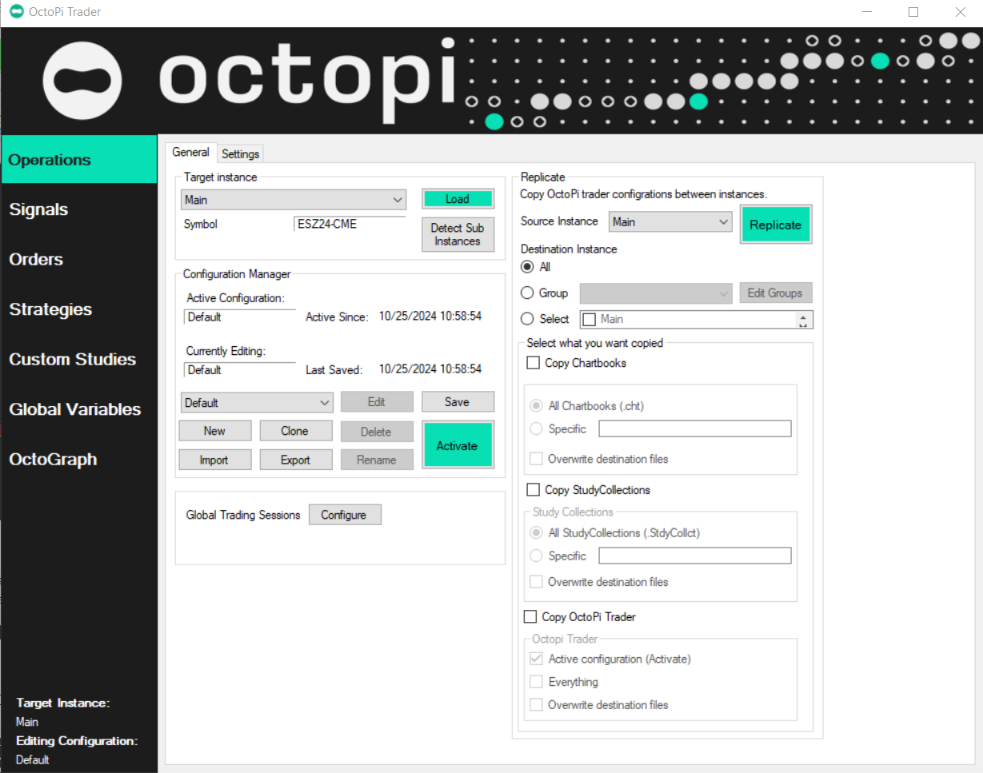
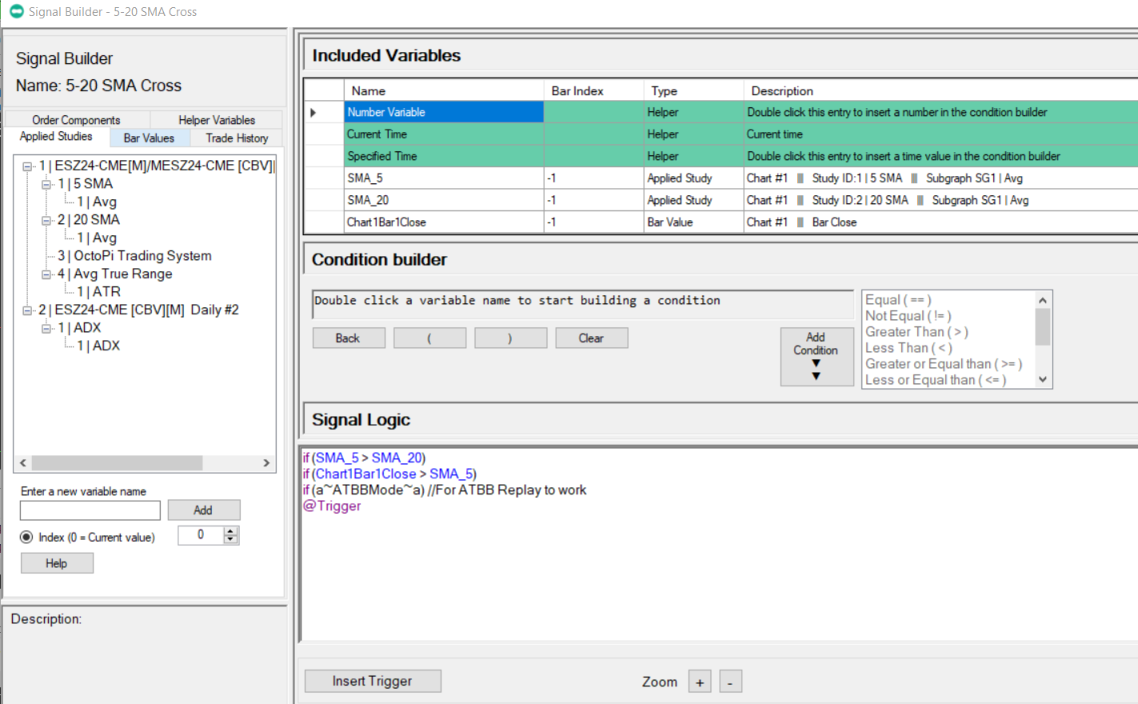
8. <span style="font-size: 11pt; font-family: Arial, sans-serif; background-color: transparent; font-weight: 400; font-style: normal; font-variant: normal; text-decoration: none; vertical-align: baseline; white-space: pre-wrap;">Click Signals, New</span>
    - <span style="font-size: 11pt; font-family: Arial, sans-serif; background-color: transparent; font-weight: 400; font-style: normal; font-variant: normal; text-decoration: none; vertical-align: baseline; white-space: pre-wrap;">Give the Signal a name, like 5-20 SMA Cross</span>
    - <span style="font-size: 11pt; font-family: Arial, sans-serif; background-color: transparent; font-weight: 400; font-style: normal; font-variant: normal; text-decoration: none; vertical-align: baseline; white-space: pre-wrap;">Watch this video: </span>[<span style="font-size: 11pt; font-family: Arial, sans-serif; background-color: transparent; font-weight: 400; font-style: normal; font-variant: normal; text-decoration: underline; text-decoration-skip-ink: none; vertical-align: baseline; white-space: pre-wrap;">How to use Signals &amp; Custom Studies</span>](https://youtu.be/-7TPQqDlGds?si=pQQnIKT7ovDtTtYS)
    - <span style="font-size: 11pt; font-family: Arial, sans-serif; background-color: transparent; font-weight: 400; font-style: normal; font-variant: normal; text-decoration: none; vertical-align: baseline; white-space: pre-wrap;">Your setup should look something like this:</span>
    - <span style="font-size: 11pt; font-family: Arial, sans-serif; background-color: transparent; font-weight: bold; font-style: normal; font-variant: normal; text-decoration: none; vertical-align: baseline; white-space: pre-wrap;"><span style="border: none; display: inline-block; overflow: hidden; width: 624px; height: 387px;">![](http://docs.octopitrader.com/uploads/images/gallery/2025-11/embedded-image-vo8er88u.png)</span></span>
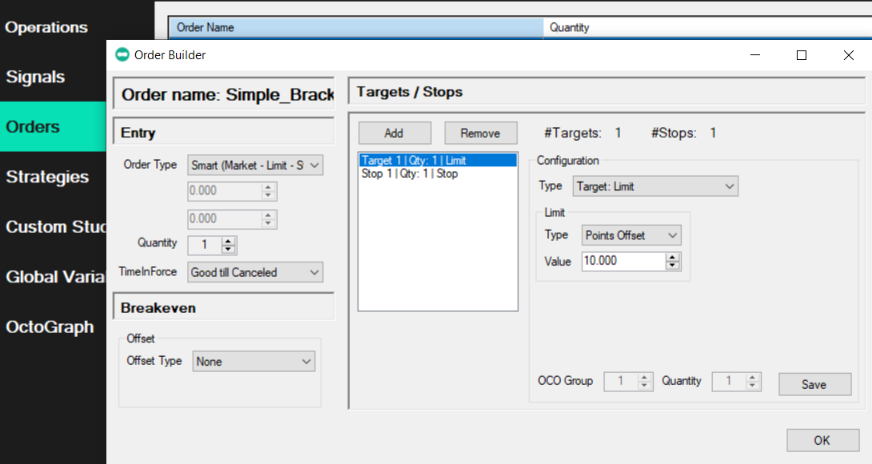
9. <span style="font-size: 11pt; font-family: Arial, sans-serif; background-color: transparent; font-weight: 400; font-style: normal; font-variant: normal; text-decoration: none; vertical-align: baseline; white-space: pre-wrap;">Click Orders, New</span>
    1. <span style="font-size: 11pt; font-family: Arial, sans-serif; background-color: transparent; font-weight: 400; font-style: normal; font-variant: normal; text-decoration: none; vertical-align: baseline; white-space: pre-wrap;">Give the Order a name, like Simple\_Bracket</span>
    2. <span style="font-size: 11pt; font-family: Arial, sans-serif; background-color: transparent; font-weight: 400; font-style: normal; font-variant: normal; text-decoration: none; vertical-align: baseline; white-space: pre-wrap;">Watch this video: </span>[<span style="font-size: 11pt; font-family: Arial, sans-serif; background-color: transparent; font-weight: 400; font-style: normal; font-variant: normal; text-decoration: underline; text-decoration-skip-ink: none; vertical-align: baseline; white-space: pre-wrap;">Orders. How to create, tips and tricks</span>](https://youtu.be/VJ6tdNV52zc?si=Md8GiFDiyilAiQYd)<span style="font-size: 11pt; font-family: Arial, sans-serif; background-color: transparent; font-weight: 400; font-style: normal; font-variant: normal; text-decoration: none; vertical-align: baseline; white-space: pre-wrap;"><span style="border: none; display: inline-block; overflow: hidden; width: 624px; height: 332px;">![](http://docs.octopitrader.com/uploads/images/gallery/2025-11/embedded-image-3pfgbazz.png)</span></span>
10. <span style="font-size: 11pt; font-family: Arial, sans-serif; background-color: transparent; font-weight: 400; font-style: normal; font-variant: normal; text-decoration: none; vertical-align: baseline; white-space: pre-wrap;">Click Strategies, New</span>
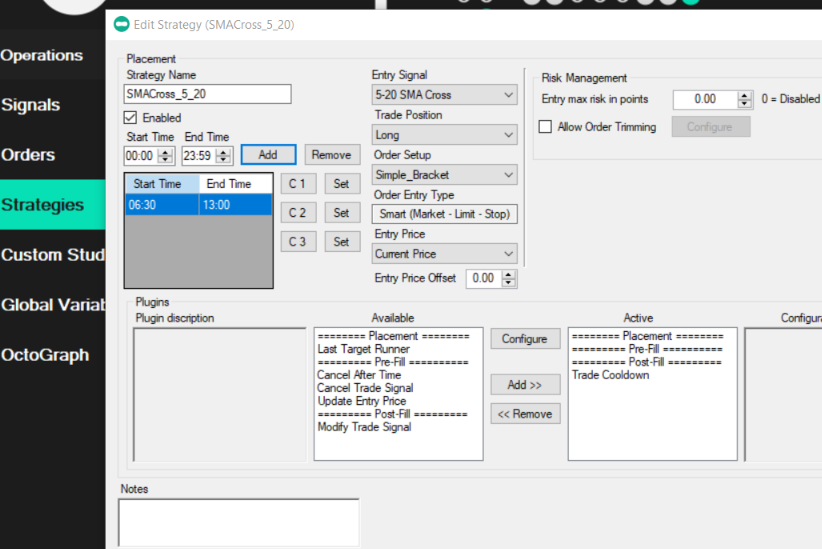
    1. <span style="font-size: 11pt; font-family: Arial, sans-serif; background-color: transparent; font-weight: 400; font-style: normal; font-variant: normal; text-decoration: none; vertical-align: baseline; white-space: pre-wrap;">Name the Strategy, like SMACross\_5\_20</span>
    2. <span style="font-size: 11pt; font-family: Arial, sans-serif; background-color: transparent; font-weight: 400; font-style: normal; font-variant: normal; text-decoration: none; vertical-align: baseline; white-space: pre-wrap;">Watch this video: Strategies. </span>[<span style="font-size: 11pt; font-family: Arial, sans-serif; background-color: transparent; font-weight: 400; font-style: normal; font-variant: normal; text-decoration: underline; text-decoration-skip-ink: none; vertical-align: baseline; white-space: pre-wrap;">How to compose and few notes on usage</span>](https://youtu.be/cdX2IrDVasM?si=26bgJAMkDBa1T_27)
    3. <span style="font-size: 11pt; font-family: Arial, sans-serif; background-color: transparent; font-weight: 400; font-style: normal; font-variant: normal; text-decoration: none; vertical-align: baseline; white-space: pre-wrap;">Your configuration should look something like this:</span>**<span style="border: none; display: inline-block; overflow: hidden; width: 624px; height: 417px;">![](http://docs.octopitrader.com/uploads/images/gallery/2025-11/embedded-image-4mefzui7.png)</span>**
    4. <span style="font-size: 11pt; font-family: Arial, sans-serif; background-color: transparent; font-weight: bold; font-style: normal; font-variant: normal; text-decoration: none; vertical-align: baseline; white-space: pre-wrap;">Now you are ready to run a back test to validate the connection between Octopi Trader Trader and Sierra Chart. You are also validating the configurations.</span>
11. <span style="font-size: 11pt; font-family: Arial, sans-serif; background-color: transparent; font-weight: bold; font-style: normal; font-variant: normal; text-decoration: none; vertical-align: baseline; white-space: pre-wrap;">Validation test: BackTesting</span>
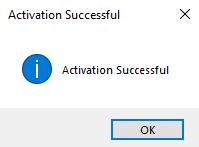
    1. <span style="font-size: 11pt; font-family: Arial, sans-serif; background-color: transparent; font-weight: 400; font-style: normal; font-variant: normal; text-decoration: none; vertical-align: baseline; white-space: pre-wrap;">If all is correct, Once you click "Activate" on the main Operations window of Octopi, you will receive a message like below:</span>
    2. <span style="font-size: 11pt; font-family: Arial, sans-serif; background-color: transparent; font-weight: 400; font-style: normal; font-variant: normal; text-decoration: none; vertical-align: baseline; white-space: pre-wrap;"><span style="border: none; display: inline-block; overflow: hidden; width: 199px; height: 147px;">![](http://docs.octopitrader.com/uploads/images/gallery/2025-11/embedded-image-0dda6e3k.png)</span></span>
    3. <span style="font-size: 11pt; font-family: Arial, sans-serif; background-color: transparent; font-weight: 400; font-style: normal; font-variant: normal; text-decoration: none; vertical-align: baseline; white-space: pre-wrap;">If the message mentions errors, it’s best to reach out to support or follow message details to cure the issue</span>
    4. <span style="font-size: 11pt; font-family: Arial, sans-serif; background-color: transparent; font-weight: 400; font-style: normal; font-variant: normal; text-decoration: none; vertical-align: baseline; white-space: pre-wrap;">Set to Sim mode, Trade, Trade Simulation Mode On</span>
    5. <span style="font-size: 11pt; font-family: Arial, sans-serif; background-color: transparent; font-weight: 400; font-style: normal; font-variant: normal; text-decoration: none; vertical-align: baseline; white-space: pre-wrap;">Disconnect your data feed. File -&gt; Disconnect</span>
    6. <span style="font-size: 11pt; font-family: Arial, sans-serif; background-color: transparent; font-weight: 400; font-style: normal; font-variant: normal; text-decoration: none; vertical-align: baseline; white-space: pre-wrap;">On the Octopi Trader custom toolbar, click Clear Logs</span>
    7. <span style="font-size: 11pt; font-family: Arial, sans-serif; background-color: transparent; font-weight: 400; font-style: normal; font-variant: normal; text-decoration: none; vertical-align: baseline; white-space: pre-wrap;">On the Operations tab, click Activate.</span>
    8. 
    9. <span style="font-size: 11pt; font-family: Arial, sans-serif; background-color: transparent; font-weight: 400; font-style: normal; font-variant: normal; text-decoration: none; vertical-align: baseline; white-space: pre-wrap;">Click the Rplay Chrt button on the Octopi Trader custom toolbar</span>
    10. <span style="font-size: 11pt; font-family: Arial, sans-serif; background-color: transparent; font-weight: 400; font-style: normal; font-variant: normal; text-decoration: none; vertical-align: baseline; white-space: pre-wrap;">Your configuration should look like this. Make sure Star Paused is selected:</span><span style="border: none; display: inline-block; overflow: hidden; width: 556px; height: 224px;">![](http://docs.octopitrader.com/uploads/images/gallery/2025-11/embedded-image-tshz3beo.png)</span>
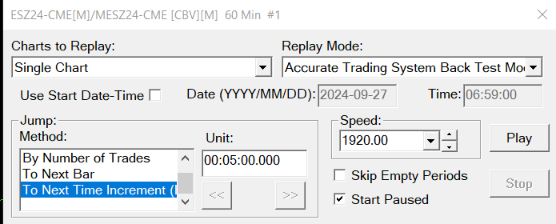
    11. <span style="font-size: 11pt; font-family: Arial, sans-serif; background-color: transparent; font-weight: 400; font-style: normal; font-variant: normal; text-decoration: none; vertical-align: baseline; white-space: pre-wrap;">Drag the slider all the way to the left, so the bars displayed are at the beginning of the dataset </span>
    12. <span style="font-size: 11pt; font-family: Arial, sans-serif; background-color: transparent; font-weight: 400; font-style: normal; font-variant: normal; text-decoration: none; vertical-align: baseline; white-space: pre-wrap;">On the Chart Replay window, press Play (first time, this will clear any data right of what is visible and started replay PAUSED)</span>
    13. <span style="font-size: 11pt; font-family: Arial, sans-serif; background-color: transparent; font-weight: 400; font-style: normal; font-variant: normal; text-decoration: none; vertical-align: baseline; white-space: pre-wrap;">Clear All Trade Data for Symbol and Account</span>
    14. <span style="font-size: 11pt; font-family: Arial, sans-serif; background-color: transparent; font-weight: 400; font-style: normal; font-variant: normal; text-decoration: none; vertical-align: baseline; white-space: pre-wrap;">On the Octopi Trader custom toolbar, click the red Octopi Trader Trade button so that it turns Green</span><span style="border: none; display: inline-block; overflow: hidden; width: 376px; height: 65px;">![](http://docs.octopitrader.com/uploads/images/gallery/2025-11/embedded-image-u96jd4vm.png)</span>

    15. 
    16. <span style="font-size: 11pt; font-family: Arial, sans-serif; background-color: transparent; font-weight: 400; font-style: normal; font-variant: normal; text-decoration: none; vertical-align: baseline; white-space: pre-wrap;">Press Play (This will now begin replaying your chart with trades executing)</span>

<span style="font-size: 11pt; font-family: Arial, sans-serif; background-color: transparent; font-weight: 400; font-style: normal; font-variant: normal; text-decoration: none; vertical-align: baseline; white-space: pre-wrap;">The backtest should start. Depending on the Sierra Chart backtesting scheme you use (either Tick or ATBB), the size of the dataset, and your system's speed, it could take a few minutes to a few hours.</span>

<span style="font-size: 11pt; font-family: Arial, sans-serif; background-color: transparent; font-weight: 400; font-style: normal; font-variant: normal; text-decoration: none; vertical-align: baseline; white-space: pre-wrap;">Under **Trade**, **Trade Activity Log** check the results.</span>

*<span style="font-size: 11pt; font-family: Arial, sans-serif; background-color: transparent; font-weight: 400; font-variant: normal; text-decoration: none; vertical-align: baseline; white-space: pre-wrap;">This system is not intended to be profitable; it is only meant to validate your installation.</span>*

<span style="font-size: 11pt; font-family: Arial, sans-serif; background-color: transparent; font-weight: 400; font-style: normal; font-variant: normal; text-decoration: none; vertical-align: baseline; white-space: pre-wrap;">Once you are able to complete a backtest, now you can start the real work of building your own strategies.</span>