# Operations

Main Interface "Operations" tab

# Operations

[![Picture2.jpg](http://docs.octopitrader.com/uploads/images/gallery/2025-10/scaled-1680-/AhrV9q2hnaJTAoLr-picture2.jpg)](http://docs.octopitrader.com/uploads/images/gallery/2025-10/AhrV9q2hnaJTAoLr-picture2.jpg)
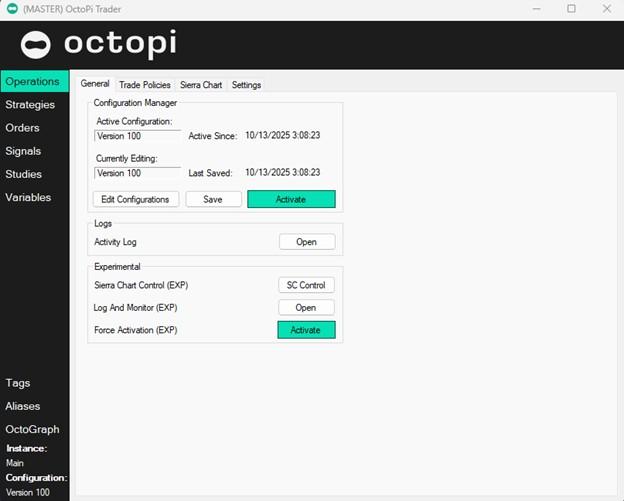
**Edit Configurations** Opens separate config management interface. Buttons are self-explanatory, but I will list some of the usage to help with purpose behind this:

- Sharing configurations between Sierra instances, computers, and users.
- Keeping backups of configurations in alternate locations to preserve work and provide historical ability to reference different config sets.

**Activate** Saves and Compiles any configuration changes to both local config file and Sierra Chart Octopi Trader study for execution. You must do this any time you make changes.

**Save** is useful to save progress that may or may not be able to be Activated. This will save your config, <span style="text-decoration: underline;">even if it has errors and does not activate</span>, allowing you to work out the errors and not lose progress before Activation.

 **Activity Log Open** opens Octopi action log that is designed to help you identify the exact sequence of events that took place during trade execution. This is a notepad file we keep inside of the SC directory to help with tracking and troubleshooting.

# Operations Experimental

<span style="font-size: 11pt; font-family: Arial, sans-serif; background-color: transparent; font-weight: bold; font-style: normal; font-variant: normal; text-decoration: none; vertical-align: baseline; white-space: pre-wrap;">SC Control </span><span style="font-size: 11pt; font-family: Arial, sans-serif; background-color: transparent; font-weight: 400; font-style: normal; font-variant: normal; text-decoration: none; vertical-align: baseline; white-space: pre-wrap;">allows users to control Sierra Chart replays by creating and saving custom replay profiles. Requires </span><span style="font-size: 11pt; font-family: Arial, sans-serif; background-color: transparent; font-weight: 400; font-style: normal; font-variant: normal; text-decoration: underline; text-decoration-skip-ink: none; vertical-align: baseline; white-space: pre-wrap;">setup</span><span style="font-size: 11pt; font-family: Arial, sans-serif; background-color: transparent; font-weight: 400; font-style: normal; font-variant: normal; text-decoration: none; vertical-align: baseline; white-space: pre-wrap;">.</span>

<span style="font-size: 11pt; font-family: Arial, sans-serif; background-color: transparent; font-weight: bold; font-style: normal; font-variant: normal; text-decoration: none; vertical-align: baseline; white-space: pre-wrap;">SC Control </span><span style="font-size: 11pt; font-family: Arial, sans-serif; background-color: transparent; font-weight: bold; font-style: normal; font-variant: normal; text-decoration: underline; text-decoration-skip-ink: none; vertical-align: baseline; white-space: pre-wrap;">setup</span><span style="font-size: 11pt; font-family: Arial, sans-serif; background-color: transparent; font-weight: 400; font-style: normal; font-variant: normal; text-decoration: none; vertical-align: baseline; white-space: pre-wrap;">: Inside SC, go to Global Settings -&gt; Sierra Chart Server Settings -&gt; UDP Port -&gt; set value to 6420. Next, go to Studies -&gt; Add Custom Study -&gt; Octopi Controller -&gt; Make sure it’s added as the top-most study on the list. If set up correctly, SC Control window will display Controller status “Connected” and Replay status like below:</span>

[![SCControl.png](http://docs.octopitrader.com/uploads/images/gallery/2025-10/scaled-1680-/pEaPfmkpolPdhby5-image5.png)](http://docs.octopitrader.com/uploads/images/gallery/2025-10/pEaPfmkpolPdhby5-image5.png)

<span style="font-size: 11pt; font-family: Arial, sans-serif; background-color: transparent; font-weight: 400; font-style: normal; font-variant: normal; text-decoration: none; vertical-align: baseline; white-space: pre-wrap;">**SC Control** Usage:</span>

- <span style="font-size: 11pt; font-family: Arial, sans-serif; background-color: transparent; font-weight: 400; font-style: normal; font-variant: normal; text-decoration: none; vertical-align: baseline; white-space: pre-wrap;">Create New replay profile with appropriate settings (self-explanatory, mirrors SC settings)</span>

[![SCControl-EditReplayProfile.png](http://docs.octopitrader.com/uploads/images/gallery/2025-10/scaled-1680-/rWxmD0pRhrk0dSal-sccontrol-editreplayprofile.png)](http://docs.octopitrader.com/uploads/images/gallery/2025-10/rWxmD0pRhrk0dSal-sccontrol-editreplayprofile.png)

- <span style="font-size: 11pt; font-family: Arial, sans-serif; background-color: transparent; font-weight: 400; font-style: normal; font-variant: normal; text-decoration: none; vertical-align: baseline; white-space: pre-wrap;">Match “Start Replay Paused” checkbox within SC Replay window</span>
- <span style="font-size: 11pt; font-family: Arial, sans-serif; background-color: transparent; font-weight: bold; font-style: normal; font-variant: normal; text-decoration: none; vertical-align: baseline; white-space: pre-wrap;">DO NOT</span><span style="font-size: 11pt; font-family: Arial, sans-serif; background-color: transparent; font-weight: 400; font-style: normal; font-variant: normal; text-decoration: none; vertical-align: baseline; white-space: pre-wrap;"> use SC Replay panel parallel to controller Start/Stop/Pause buttons!</span>
    - <span style="font-size: 11pt; font-family: Arial, sans-serif; background-color: transparent; font-weight: 400; font-style: normal; font-variant: normal; text-decoration: none; vertical-align: baseline; white-space: pre-wrap;">Only exception is you can change replay speed on SC mid-way through replay</span>
- <span style="font-size: 11pt; font-family: Arial, sans-serif; background-color: transparent; font-weight: 400; font-style: normal; font-variant: normal; text-decoration: none; vertical-align: baseline; white-space: pre-wrap;">Controller will do the following fully automatically:</span>
    - <span style="font-size: 11pt; font-family: Arial, sans-serif; background-color: transparent; font-weight: 400; font-style: normal; font-variant: normal; text-decoration: none; vertical-align: baseline; white-space: pre-wrap;">Rewind chart to desired date/time (specific, or start of chart)</span>
    - <span style="font-size: 11pt; font-family: Arial, sans-serif; background-color: transparent; font-weight: 400; font-style: normal; font-variant: normal; text-decoration: none; vertical-align: baseline; white-space: pre-wrap;">Clear SIM (if configured)</span>
    - <span style="font-size: 11pt; font-family: Arial, sans-serif; background-color: transparent; font-weight: 400; font-style: normal; font-variant: normal; text-decoration: none; vertical-align: baseline; white-space: pre-wrap;">Enable Octopi study</span>
    - <span style="font-size: 11pt; font-family: Arial, sans-serif; background-color: transparent; font-weight: 400; font-style: normal; font-variant: normal; text-decoration: none; vertical-align: baseline; white-space: pre-wrap;">Begin replay </span>
    - <span style="font-size: 11pt; font-family: Arial, sans-serif; background-color: transparent; font-weight: 400; font-style: normal; font-variant: normal; text-decoration: none; vertical-align: baseline; white-space: pre-wrap;">Stop Replay &amp; Disable Octopi Study</span>

# Log and Monitor

<span style="font-size: 11pt; font-family: Arial, sans-serif; background-color: transparent; font-weight: bold; font-style: normal; font-variant: normal; text-decoration: none; vertical-align: baseline; white-space: pre-wrap;">Log and Monitor </span><span style="font-size: 11pt; font-family: Arial, sans-serif; background-color: transparent; font-weight: 400; font-style: normal; font-variant: normal; text-decoration: none; vertical-align: baseline; white-space: pre-wrap;">allows live (or near-live when replay speed is too fast) asynchronous OP status logging and monitoring for both automatic internal status messages as well as user-configured values, studies, and custom conditions.</span>

<span style="font-size: 11pt; font-family: Arial, sans-serif; background-color: transparent; font-weight: bold; font-style: normal; font-variant: normal; text-decoration: none; vertical-align: baseline; white-space: pre-wrap;">Activity Log </span><span style="font-size: 11pt; font-family: Arial, sans-serif; background-color: transparent; font-weight: 400; font-style: normal; font-variant: normal; text-decoration: none; vertical-align: baseline; white-space: pre-wrap;">tab mirrors information we put into the Activity Log file mentioned above, but this is done without interrupting SC replay process for maximum performance. </span>

<span style="font-size: 11pt; font-family: Arial, sans-serif; background-color: transparent; font-weight: bold; font-style: normal; font-variant: normal; text-decoration: none; vertical-align: baseline; white-space: pre-wrap;">Signal/Studies Monitor</span><span style="font-size: 11pt; font-family: Arial, sans-serif; background-color: transparent; font-weight: 400; font-style: normal; font-variant: normal; text-decoration: none; vertical-align: baseline; white-space: pre-wrap;"> is for tracking user-configured monitoring. Examples below, more on this later (and probably in a video) </span>

<span style="font-size: 11pt; font-family: Arial, sans-serif; background-color: transparent; font-weight: 400; font-style: normal; font-variant: normal; text-decoration: none; vertical-align: baseline; white-space: pre-wrap;">Examples of user-configured monitors inside “Signals” via Highlight -&gt; Right Click Menu:</span>

<span style="font-size: 11pt; font-family: Arial, sans-serif; background-color: transparent; font-weight: 400; font-style: normal; font-variant: normal; text-decoration: none; vertical-align: baseline; white-space: pre-wrap;">Example 1 monitors a SC study subgraph value:</span>

[![image8.png](http://docs.octopitrader.com/uploads/images/gallery/2025-11/scaled-1680-/image8.png)](http://docs.octopitrader.com/uploads/images/gallery/2025-11/image8.png)

<span style="font-size: 11pt; font-family: Arial, sans-serif; background-color: transparent; font-weight: 400; font-style: normal; font-variant: normal; text-decoration: none; vertical-align: baseline; white-space: pre-wrap;">Example 2 monitors a condition inside the bracket (0 and 1 for true and false)</span>

[![image20.png](http://docs.octopitrader.com/uploads/images/gallery/2025-11/scaled-1680-/image20.png)](http://docs.octopitrader.com/uploads/images/gallery/2025-11/image20.png)

**<span style="font-size: 11pt; font-family: Arial, sans-serif; background-color: transparent; font-weight: 400; font-style: normal; font-variant: normal; text-decoration: none; vertical-align: baseline; white-space: pre-wrap;">Resulting monitor looks like this:</span>**[![image23.png](http://docs.octopitrader.com/uploads/images/gallery/2025-11/scaled-1680-/image23.png)](http://docs.octopitrader.com/uploads/images/gallery/2025-11/image23.png)

# Trade Policies

**[![image13.png](http://docs.octopitrader.com/uploads/images/gallery/2025-11/scaled-1680-/image13.png)](http://docs.octopitrader.com/uploads/images/gallery/2025-11/image13.png)**

<span style="font-size: 11pt; font-family: Arial, sans-serif; background-color: transparent; font-weight: bold; font-style: normal; font-variant: normal; text-decoration: none; vertical-align: baseline; white-space: pre-wrap;">Global Max Risk </span><span style="font-size: 11pt; font-family: Arial, sans-serif; background-color: transparent; font-weight: 400; font-style: normal; font-variant: normal; text-decoration: none; vertical-align: baseline; white-space: pre-wrap;">sets maximum global (across all strategies within the same configuration) risk in POINTS. Risk is calculated based on each strategy's order sum of STOP order points. </span><span style="font-size: 11pt; font-family: Arial, sans-serif; background-color: transparent; font-weight: 400; font-style: normal; font-variant: normal; text-decoration: none; vertical-align: baseline; white-space: pre-wrap;">  
</span><span style="font-size: 11pt; font-family: Arial, sans-serif; background-color: transparent; font-weight: 400; font-style: normal; font-variant: normal; text-decoration: none; vertical-align: baseline; white-space: pre-wrap;">Example: Two strategies entering at the same time, each with order of two contracts configured with 10 points stops will result in 40 points of risk. Limiting Global Risk to 30 points will do one of two things: prevent Strategy 2 from entering at the same time as Strategy 1, OR trim Strategy 2 order to only one contract out of two (See Order Trimming within Strategies). </span>

<span style="font-size: 11pt; font-family: Arial, sans-serif; background-color: transparent; font-weight: bold; font-style: normal; font-variant: normal; text-decoration: none; vertical-align: baseline; white-space: pre-wrap;">Trade Protection </span><span style="font-size: 11pt; font-family: Arial, sans-serif; background-color: transparent; font-weight: 400; font-style: normal; font-variant: normal; text-decoration: none; vertical-align: baseline; white-space: pre-wrap;">is a Live-trading feature that detects gaps outside of defined order brackets and queues order for market exit. We recommend using this when you go LIVE. </span>

<span style="font-size: 11pt; font-family: Arial, sans-serif; background-color: transparent; font-weight: bold; font-style: normal; font-variant: normal; text-decoration: none; vertical-align: baseline; white-space: pre-wrap;">Global Trading Sessions </span><span style="font-size: 11pt; font-family: Arial, sans-serif; background-color: transparent; font-weight: 400; font-style: normal; font-variant: normal; text-decoration: none; vertical-align: baseline; white-space: pre-wrap;">allows configuring global order execution times, as well as cancel/flatten actions for each. See example below to trade from 8AM to 11AM and Cancel any pending orders at 11, then resume trading at 1PM through 3PM canceling and flattening all positions at 3PM:</span>

[![image25.png](http://docs.octopitrader.com/uploads/images/gallery/2025-11/scaled-1680-/image25.png)](http://docs.octopitrader.com/uploads/images/gallery/2025-11/image25.png)

<span style="font-size: 11pt; font-family: Arial, sans-serif; background-color: transparent; font-weight: 400; font-style: normal; font-variant: normal; text-decoration: none; vertical-align: baseline; white-space: pre-wrap;">We recommend setting this to </span><span style="font-size: 11pt; font-family: Arial, sans-serif; background-color: transparent; font-weight: bold; font-style: normal; font-variant: normal; text-decoration: none; vertical-align: baseline; white-space: pre-wrap;">Trade 24 Hours</span><span style="font-size: 11pt; font-family: Arial, sans-serif; background-color: transparent; font-weight: 400; font-style: normal; font-variant: normal; text-decoration: none; vertical-align: baseline; white-space: pre-wrap;"> and limiting Strategy execution window as well as creating planned exit signals. This is a secondary layer tool by design but can be used as primary if you must. </span>

<span style="font-size: 11pt; font-family: Arial, sans-serif; background-color: transparent; font-weight: bold; font-style: normal; font-variant: normal; text-decoration: none; vertical-align: baseline; white-space: pre-wrap;">Reserved Bars </span><span style="font-size: 11pt; font-family: Arial, sans-serif; background-color: transparent; font-weight: 400; font-style: normal; font-variant: normal; text-decoration: none; vertical-align: baseline; white-space: pre-wrap;">sets a minimum number of bars for SC to replay from the start of the chart to allow for necessary studies to “come of age” before being used for Signal calculations. Example: If your signal is to wait for SMA 50 to cross SMA200, you should set this value to a minimum of 200. For 200 bars OP will not do anything, then will begin execution. </span>

 **<span style="font-size: 11pt; font-family: Arial, sans-serif; background-color: transparent; font-weight: bold; font-style: normal; font-variant: normal; text-decoration: none; vertical-align: baseline; white-space: pre-wrap;">ATBB Replay Time Sampling</span><span style="font-size: 11pt; font-family: Arial, sans-serif; background-color: transparent; font-weight: 400; font-style: normal; font-variant: normal; text-decoration: none; vertical-align: baseline; white-space: pre-wrap;"> allows Auto Trading Bar Based Replay (ATBB button in Sierra Chart)</span>**

# Sierra Chart

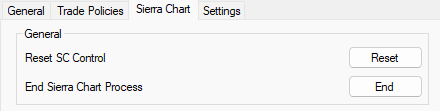
[![image17.png](http://docs.octopitrader.com/uploads/images/gallery/2025-11/scaled-1680-/image17.png)](http://docs.octopitrader.com/uploads/images/gallery/2025-11/image17.png)

<span style="font-size: 11pt; font-family: Arial, sans-serif; background-color: transparent; font-weight: 400; font-style: normal; font-variant: normal; text-decoration: none; vertical-align: baseline; white-space: pre-wrap;">Helper buttons to resolve issues.</span>

<span style="font-size: 11pt; font-family: Arial, sans-serif; background-color: transparent; font-weight: 400; font-style: normal; font-variant: normal; text-decoration: none; vertical-align: baseline; white-space: pre-wrap;">One **Reset**s Sierra Chart Controller study</span>

<span style="font-size: 11pt; font-family: Arial, sans-serif; background-color: transparent; font-weight: 400; font-style: normal; font-variant: normal; text-decoration: none; vertical-align: baseline; white-space: pre-wrap;">Other finds and **End**s Process for affected stuck Sierra Chart process without having to go though Task Manager and looking for specific instances. </span>

# Settings

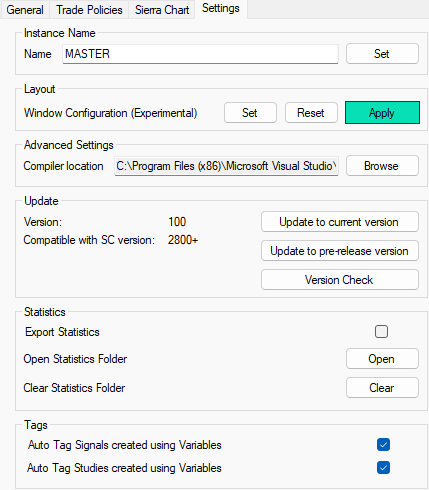
[![image6.png](http://docs.octopitrader.com/uploads/images/gallery/2025-11/scaled-1680-/image6.png)](http://docs.octopitrader.com/uploads/images/gallery/2025-11/image6.png)

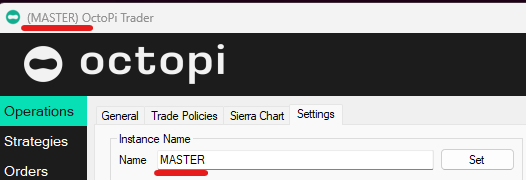
**<span style="font-size: 11pt; font-family: Arial, sans-serif; background-color: transparent; font-weight: bold; font-style: normal; font-variant: normal; text-decoration: none; vertical-align: baseline; white-space: pre-wrap;">Instance Name </span><span style="font-size: 11pt; font-family: Arial, sans-serif; background-color: transparent; font-weight: 400; font-style: normal; font-variant: normal; text-decoration: none; vertical-align: baseline; white-space: pre-wrap;">sets the window name. Useful when running multiple Octopi to keep organized. </span>**[![image14.png](http://docs.octopitrader.com/uploads/images/gallery/2025-11/scaled-1680-/image14.png)](http://docs.octopitrader.com/uploads/images/gallery/2025-11/image14.png)

<span style="font-size: 11pt; font-family: Arial, sans-serif; background-color: transparent; font-weight: bold; font-style: normal; font-variant: normal; text-decoration: none; vertical-align: baseline; white-space: pre-wrap;">Layout </span><span style="font-size: 11pt; font-family: Arial, sans-serif; background-color: transparent; font-weight: 400; font-style: normal; font-variant: normal; text-decoration: none; vertical-align: baseline; white-space: pre-wrap;">lets you </span><span style="font-size: 11pt; font-family: Arial, sans-serif; background-color: transparent; font-weight: 400; font-style: italic; font-variant: normal; text-decoration: underline; text-decoration-skip-ink: none; vertical-align: baseline; white-space: pre-wrap;">Set</span><span style="font-size: 11pt; font-family: Arial, sans-serif; background-color: transparent; font-weight: 400; font-style: italic; font-variant: normal; text-decoration: none; vertical-align: baseline; white-space: pre-wrap;"> </span><span style="font-size: 11pt; font-family: Arial, sans-serif; background-color: transparent; font-weight: 400; font-style: normal; font-variant: normal; text-decoration: none; vertical-align: baseline; white-space: pre-wrap;">and Apply (Open and re-place to </span><span style="font-size: 11pt; font-family: Arial, sans-serif; background-color: transparent; font-weight: 400; font-style: italic; font-variant: normal; text-decoration: underline; text-decoration-skip-ink: none; vertical-align: baseline; white-space: pre-wrap;">Set</span><span style="font-size: 11pt; font-family: Arial, sans-serif; background-color: transparent; font-weight: 400; font-style: italic; font-variant: normal; text-decoration: none; vertical-align: baseline; white-space: pre-wrap;"> </span><span style="font-size: 11pt; font-family: Arial, sans-serif; background-color: transparent; font-weight: 400; font-style: normal; font-variant: normal; text-decoration: none; vertical-align: baseline; white-space: pre-wrap;">Locations) all of the Octopi Windows you work with such as Controller, Monitor, and Main window.</span>

<span style="font-size: 11pt; font-family: Arial, sans-serif; background-color: transparent; font-weight: 400; font-style: normal; font-variant: normal; text-decoration: none; vertical-align: baseline; white-space: pre-wrap;">Compiler location setting for advanced users that keep your compilers elsewhere. </span>

<span style="font-size: 11pt; font-family: Arial, sans-serif; background-color: transparent; font-weight: bold; font-style: normal; font-variant: normal; text-decoration: none; vertical-align: baseline; white-space: pre-wrap;">Update</span><span style="font-size: 11pt; font-family: Arial, sans-serif; background-color: transparent; font-weight: 400; font-style: normal; font-variant: normal; text-decoration: none; vertical-align: baseline; white-space: pre-wrap;"> Current and Pre-release - only go to Pre-Release if you’ve been instructed to or if you are adventurous. We don’t support Pre-Release versions for anybody other than the users we are working with to test these. If you upgrade and run into issues it’s on you! </span>

<span style="font-size: 11pt; font-family: Arial, sans-serif; background-color: transparent; font-weight: bold; font-style: normal; font-variant: normal; text-decoration: none; vertical-align: baseline; white-space: pre-wrap;">Statistics </span><span style="font-size: 11pt; font-family: Arial, sans-serif; background-color: transparent; font-weight: 400; font-style: normal; font-variant: normal; text-decoration: none; vertical-align: baseline; white-space: pre-wrap;">exports data for QuantAnalyzer to use. See post about it here: </span>[<span style="font-size: 11pt; font-family: Arial, sans-serif; background-color: transparent; font-weight: 400; font-style: normal; font-variant: normal; text-decoration: underline; text-decoration-skip-ink: none; vertical-align: baseline; white-space: pre-wrap;">https://discord.com/channels/1207787953116553279/1312635388489105418/1355999901846212892</span>](https://discord.com/channels/1207787953116553279/1312635388489105418/1355999901846212892)

 **<span style="font-size: 11pt; font-family: Arial, sans-serif; background-color: transparent; font-weight: bold; font-style: normal; font-variant: normal; text-decoration: none; vertical-align: baseline; white-space: pre-wrap;">Tags </span><span style="font-size: 11pt; font-family: Arial, sans-serif; background-color: transparent; font-weight: 400; font-style: normal; font-variant: normal; text-decoration: none; vertical-align: baseline; white-space: pre-wrap;">This setting is to automatically tag Signals and Studies that get created in the process of making Persistent Variables. Helps you identify what you’ve created inside of Signals or elsewhere vs Signals created for the purpose of setting/resetting/etc of Variables. Keep this on, or don’t - your call.</span>**